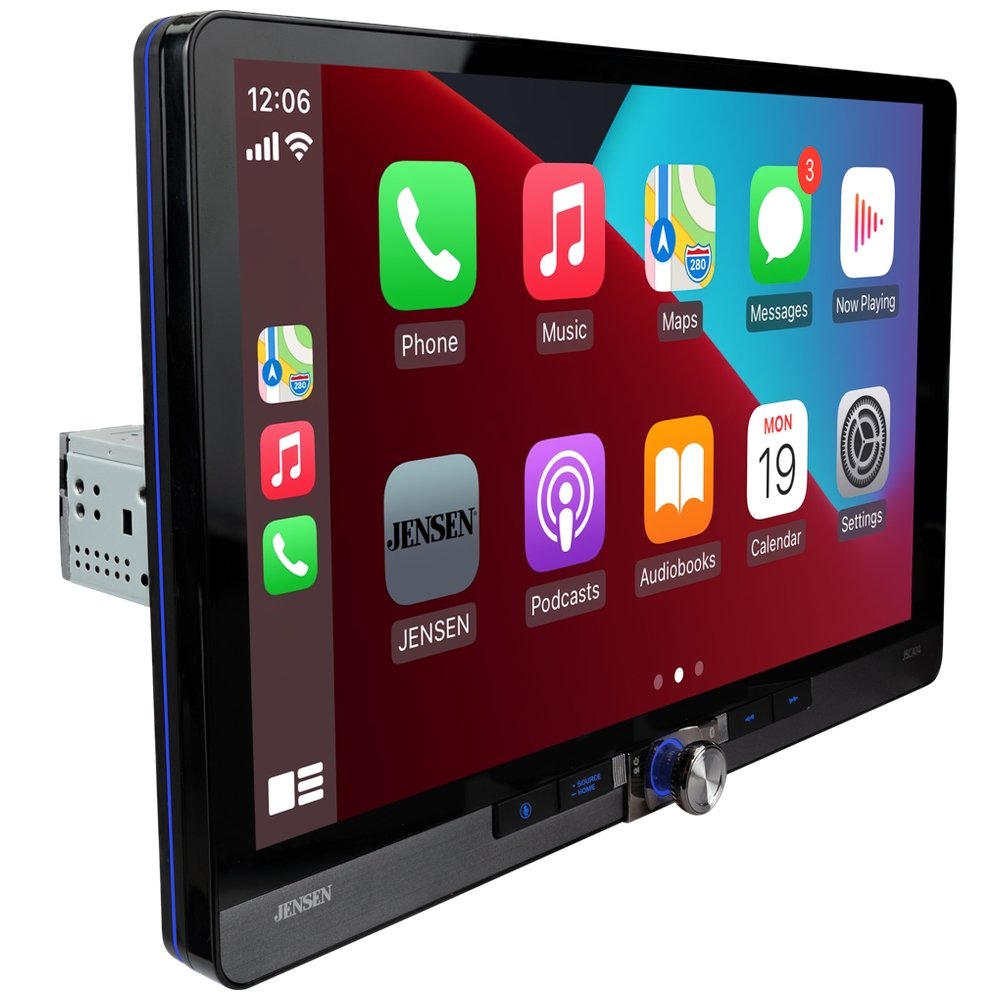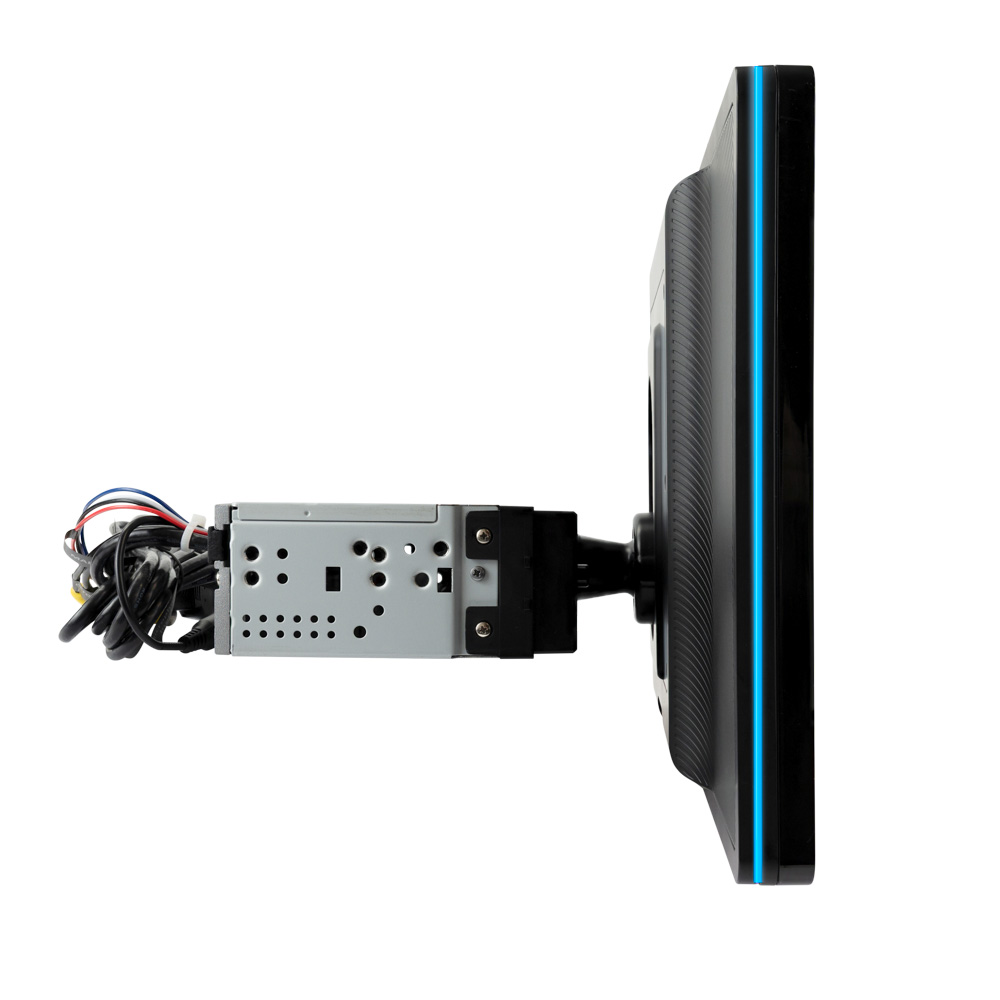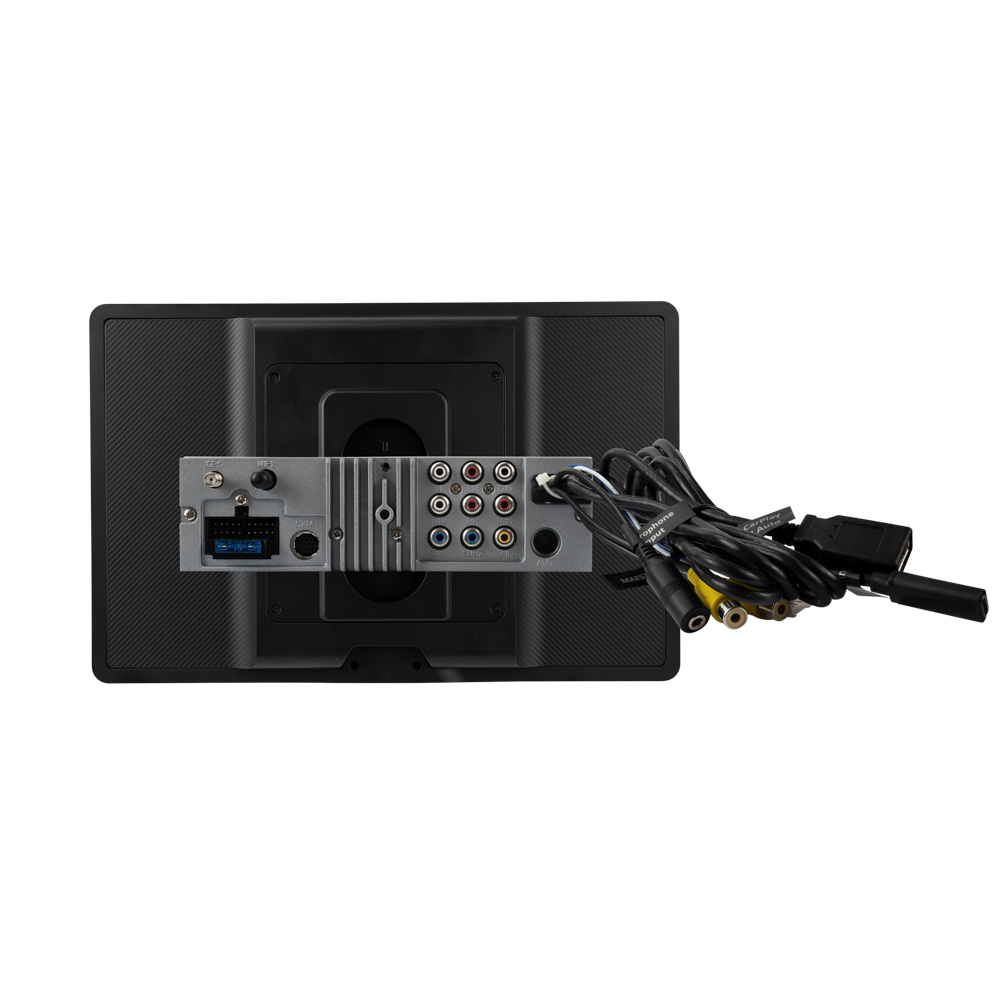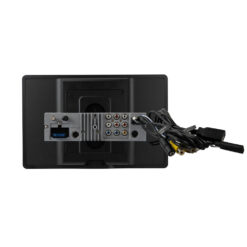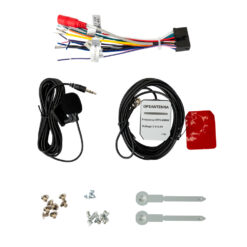
J5CA14 – 14″ Touchscreen Receiver | Wireless CarPlay, Android Auto, Maestro, Metra Axxess
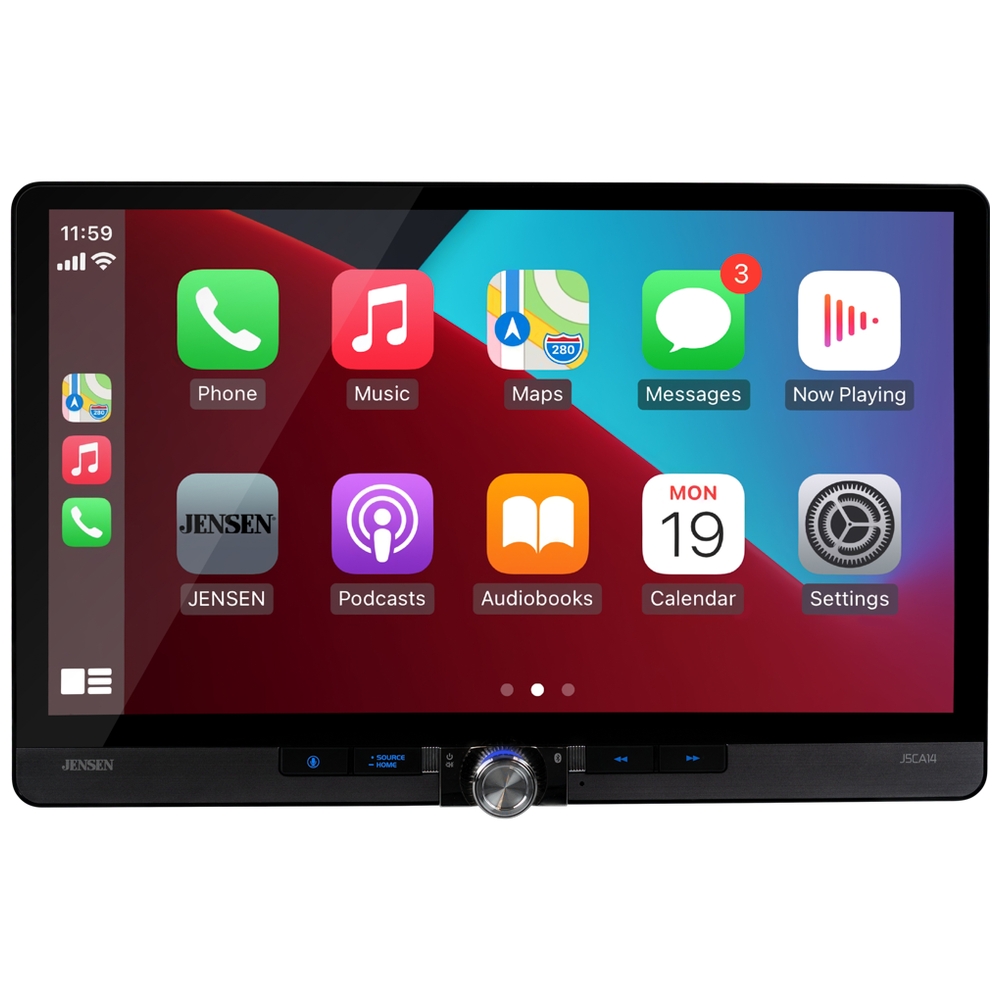
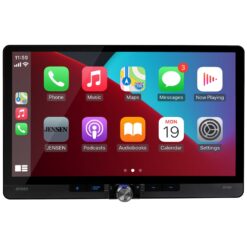
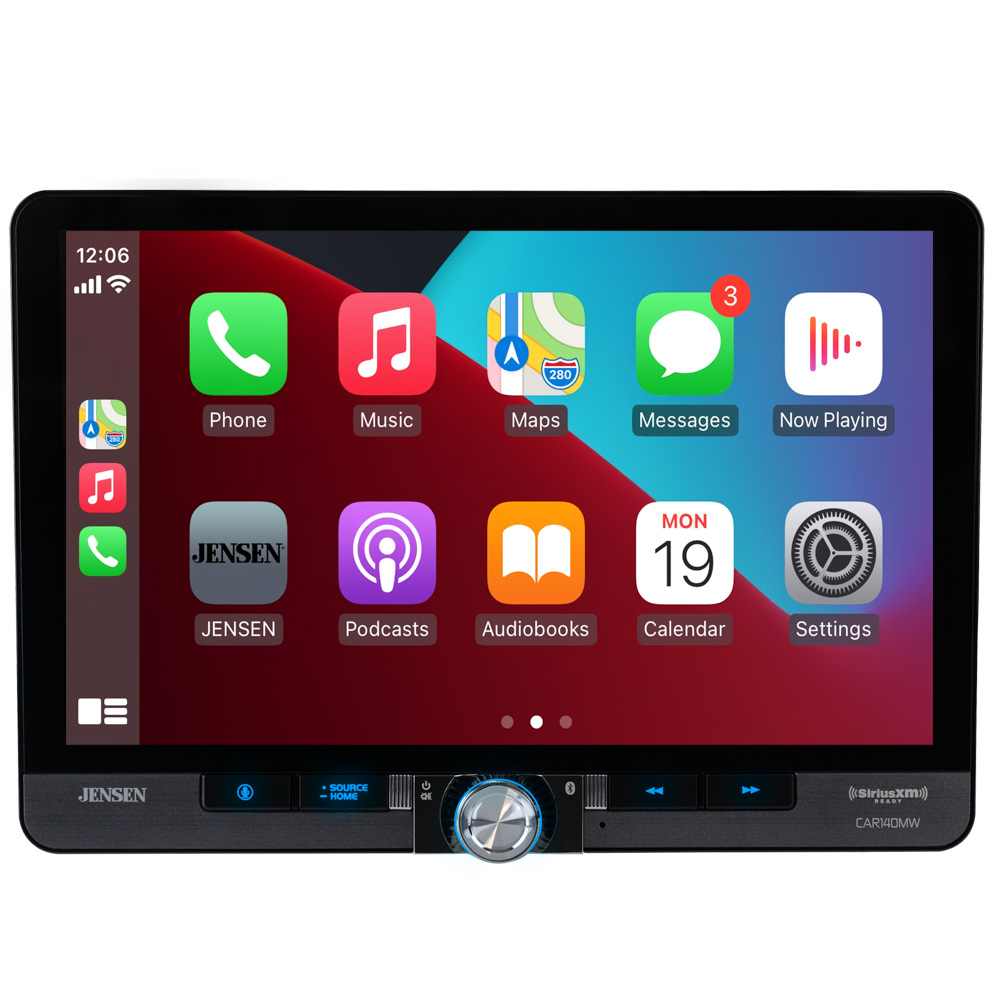
With Apple CarPlay and Android Auto, seemlessly control key phone features directly from the receiver’s touchscreen or via voice-control, significantly reducing driver distraction.
With voice-control you can ask your phone to control your messages, maps, music and phone.
Both Apple CarPlay and Android Auto launch upon connecting a compatible phone to the receiver via wirelessly or USB.
Bluetooth Hands-Free Calling
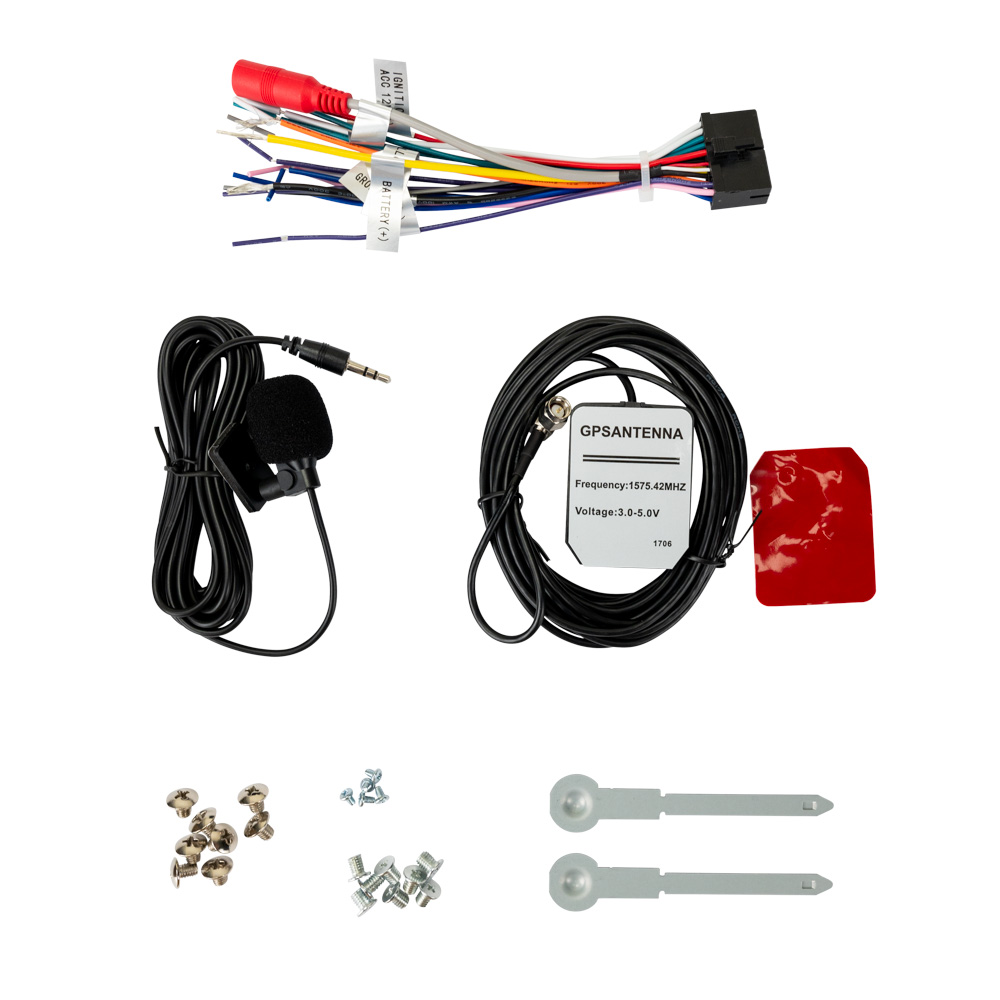
Safely answer and make calls from your receiver using touchscreen icons and the included microphone.
J5CA14 Model Features
Phone Connectivity
Control key phone features from the touchscreen or via voice-control. You can ask your phone to control your messages, maps, music and phone.
Maestro / Metra Axxess
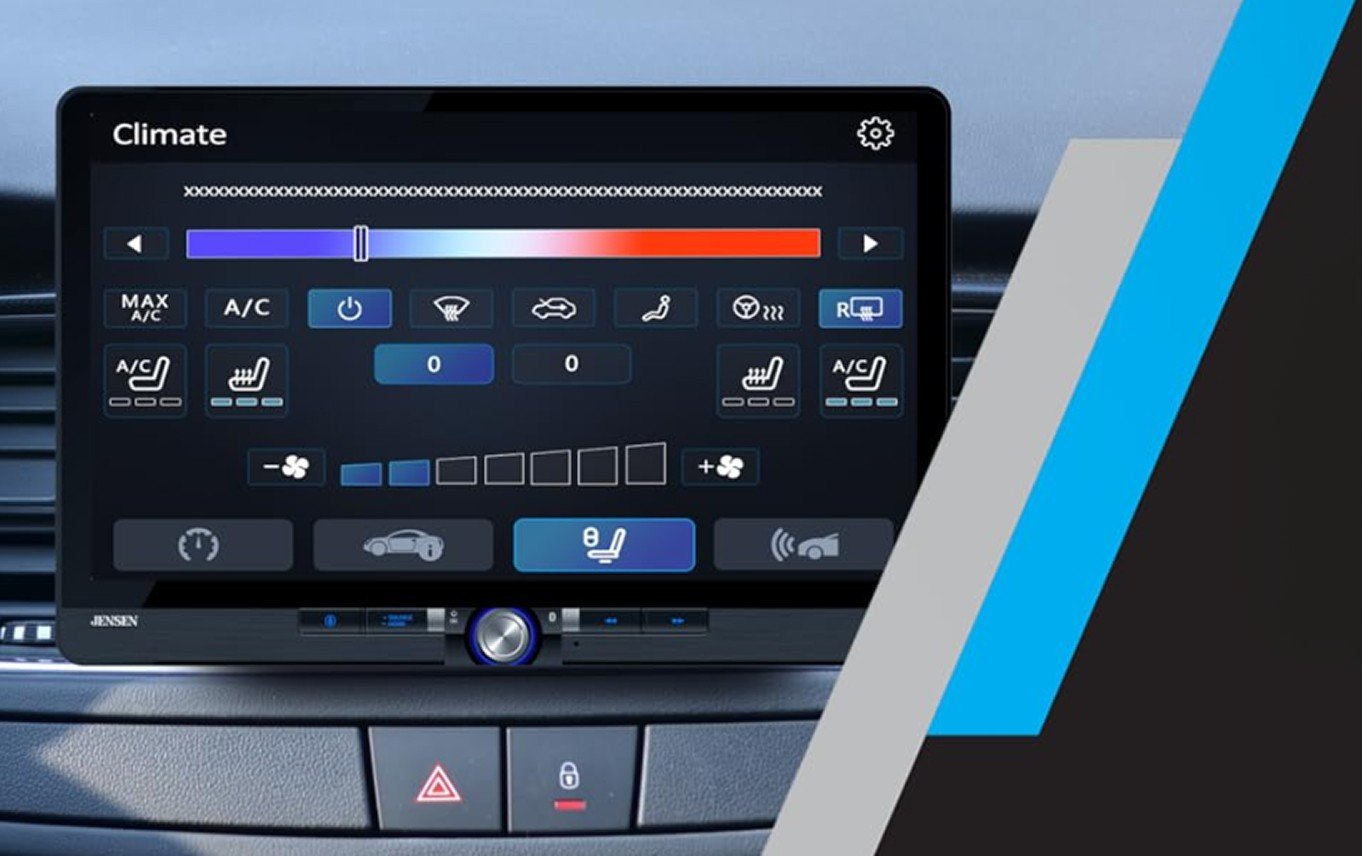
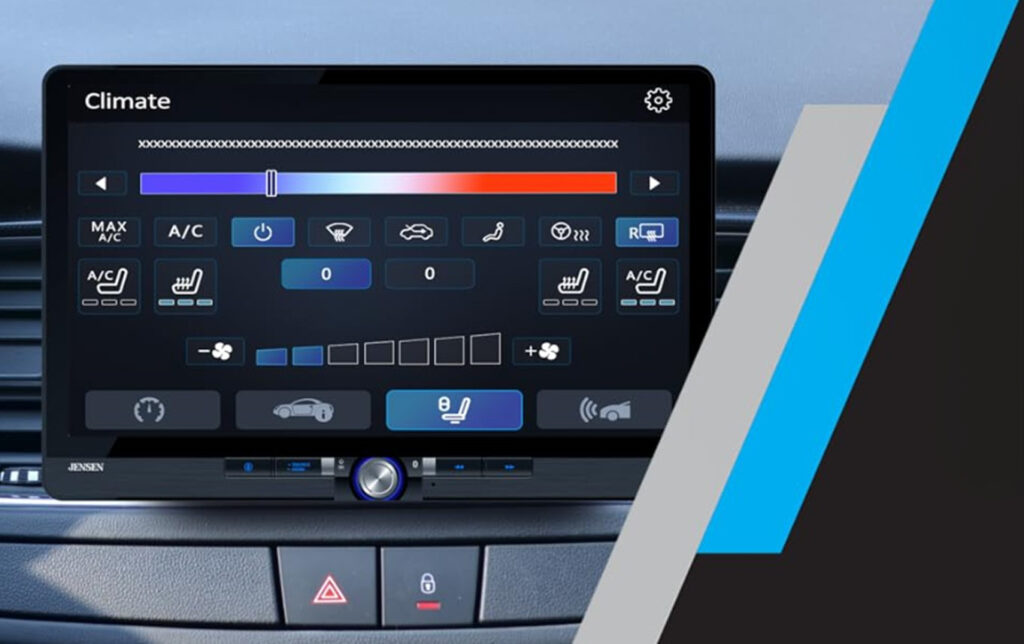
Access car factory functions like climate control, parking sensors, speed, and tire pressure with seamless ease.
SiriusXM Ready
Access more than 140 channels, including commercial-free music, sports, news, talk, comedy and entertainment with SiriusXM® Satellite Radio.
Custom Color
The outer screen is lined with color-changing illumination for customization options.
With the iDataLink Maestro RR or Metra Axxess Integration Package, you can manage factory functions and steering wheel controls from your Jensen receiver. Control car climate, parking sensors, speed, and tire pressure from your touchscreen!
Feature
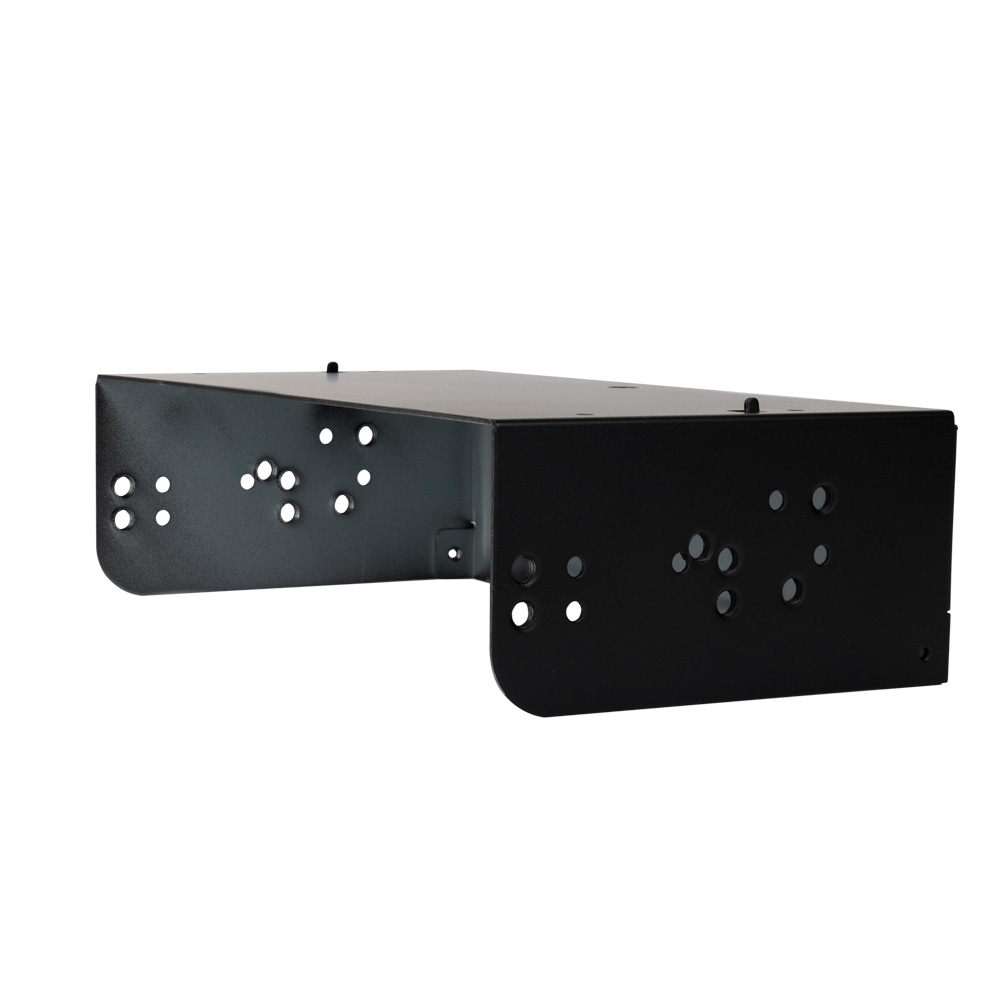
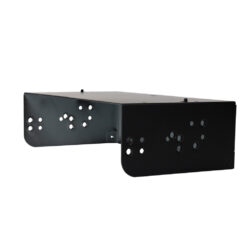
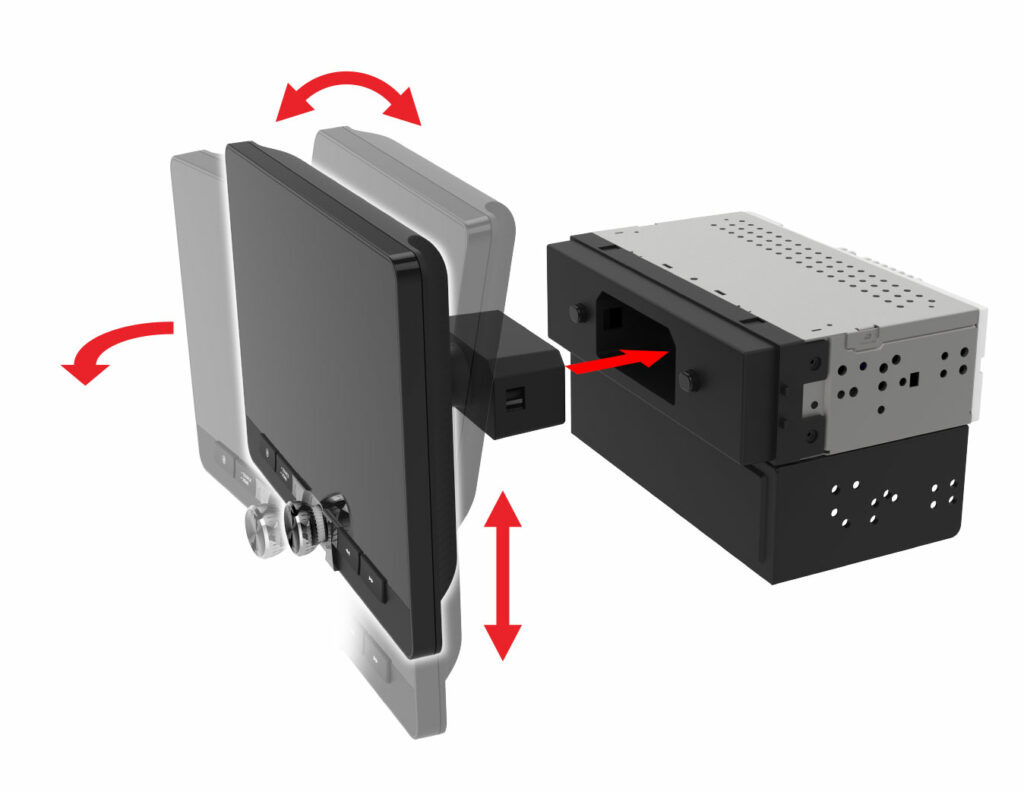
Dash Mount Adapter Allows for 1 DIN and 2 DIN Installation
Coming Soon – Download and Print Size Guide PDF to See if it Fits Your Car
| Playback | Digital Multimedia |
|---|---|
| Screen Size | 14" |
| Size | Double Din |
| Peak Power | 240W (60W x 4) MOSFET |
| Phone Connectivity | Android Auto, Android Auto Wireless, Bluetooth, CarPlay, CarPlay Wireless |
| Bluetooth Features | Audio Streaming, External Microphone, Hands-free Calling, Internal Microphone, Phonebook Support, Voice Activation Button |
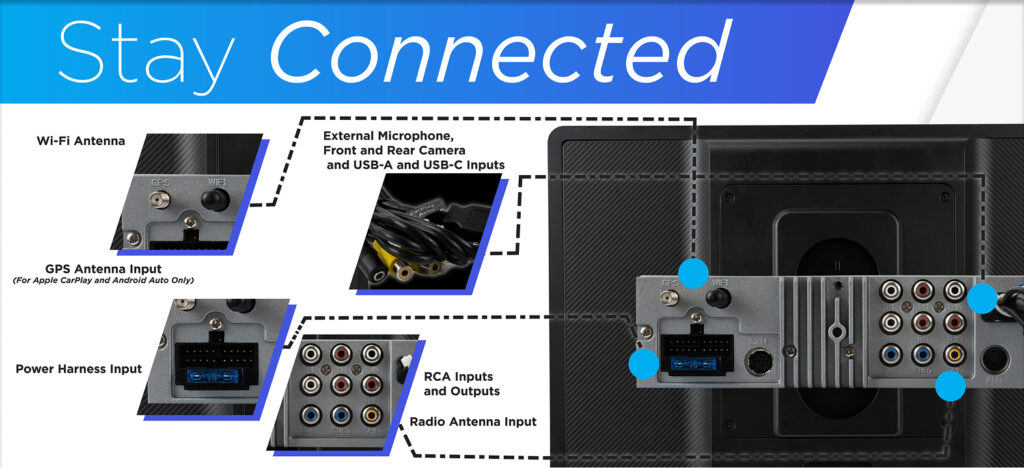
| Inputs | Audio / Video (Rear), USB (Rear), Front and Rear Camera Inputs, USB x 2 (Rear), USB-C (Rear) |
| USB Charge | 2.1A |
| File Playback | FLAC, JPEG, MP3 |
| Preamp Outputs | 3 Pairs of 4V Preamp Outputs (Front + Rear + Sub) |
| Audio Processing | 8 EQ Presets |
| AM/FM Receiver | 30 Station presets (18FM/12AM), RDS |
- Quick Start Guide (EN) - GUÍA DE INICIO RÁPIDO (Español)(opens in a new tab)
- Owner's Manual (English) (opens in a new tab)
- Owner's Manual (Español) (opens in a new tab)
- 14-Inch Sizing Guide Download (opens in a new tab)
iDatalink Operation: *Important Update to Owner's Manual
- Find the Maestro serial number of this product. Ensure you have the entire serial number (all 16 digits) available.
Note: Entering only the last 7 digits may cause the flashing process to fail or cause communication issues with the head unit.
Firmware Update Instructions
A Note about Firmware Update via USB Devices
We recommend following the guidelines below for your USB drive:
- Use an 8GB or 16GB USB drive from a common USB drive manufacturer.
- Some recommended brands include:
- SanDisk®
- Kingston®
- PNY®
- Verbatim®
- Corsair®
- The drive should support USB 2.0 or faster transfer speeds. Older version USB 1.0 drives are not compatible.
- Format the drive using FAT32 as the file system on your laptop or computer before copying the software update to the USB drive.
This update addresses the following:
- Corrects Radios Station Saving after using Auto Store
Note: Software is not interchangeable between models. Please do not attempt this update on any model other than the J5CA14.
How to Update:
- Download the firmware file from the link below.
- Unzip the downloaded file. Note: To unzip the file, the program WINRAR is required and can be downloaded from this link: WINRAR Download
- Copy the
ISPBOOOT.BINfile and the Update Folder to an empty USB Thumb Drive formatted to FAT32. - Insert the USB Thumb Drive with Update Firmware into the J5CA14 Android Auto/Apple CarPlay Port Only.
- Navigate to Settings and scroll till you get to the About button on the left side of the menu.
- Press the About button and you will see on the right-hand side Software Update.
- Press Software Update and you will see the Update button. Press Update to begin the firmware upgrade.
- This is a two-part update. After the first update is complete, the radio's screen will turn black for 10 seconds and then the second part will start automatically. Once finished, the radio will restart.
- Remove the USB stick, the update is now complete.
Download Firmware Zipped File: J5CA14 Firmware Download
To check that the update was done correctly, go to Settings and press Others and then press System Version. If you see the following information, the update was done correctly for model J5CA14.
-MCU: GD92-250920
-SOC: J5CA14-720P-251114
-Hardware Version: 2.0.3
-Software Version: 2.0.3
-SDK Version: 22.0.13.0.0.0.4.0