shop header graphic
shop header graphic
shop header graphic

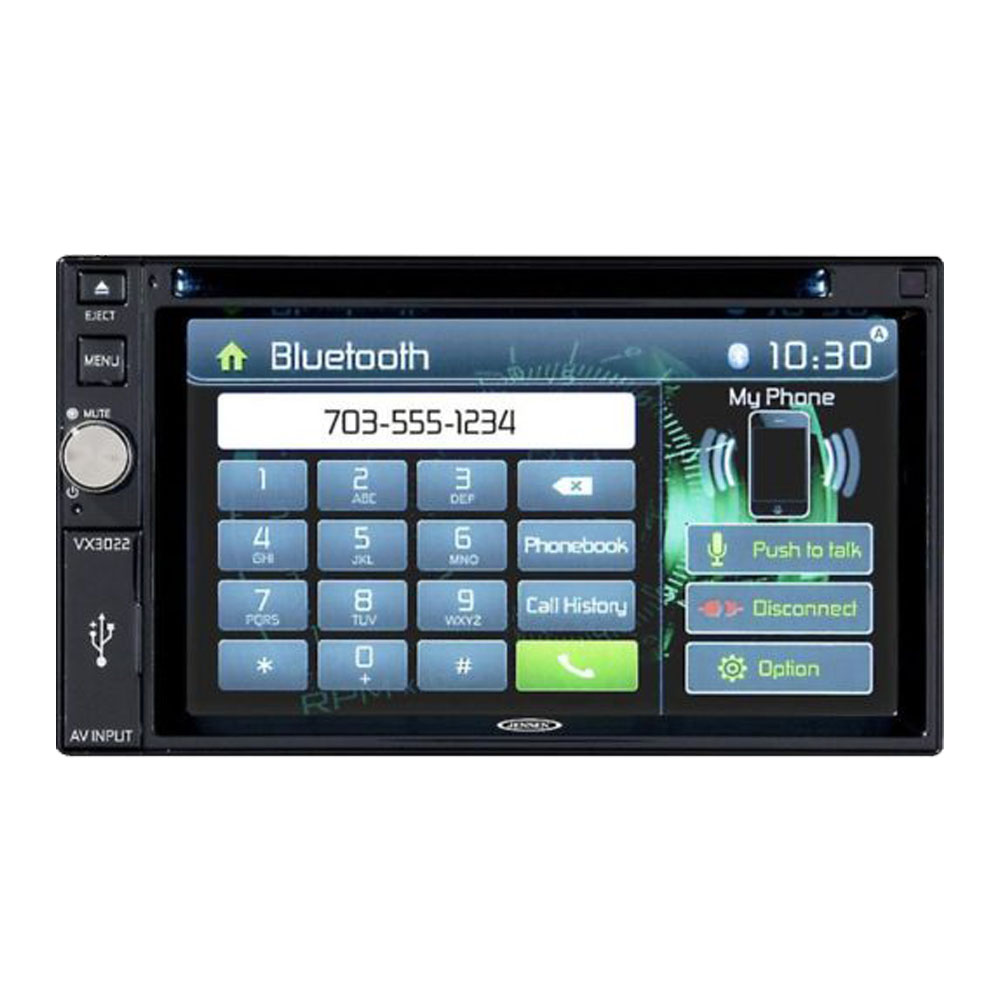
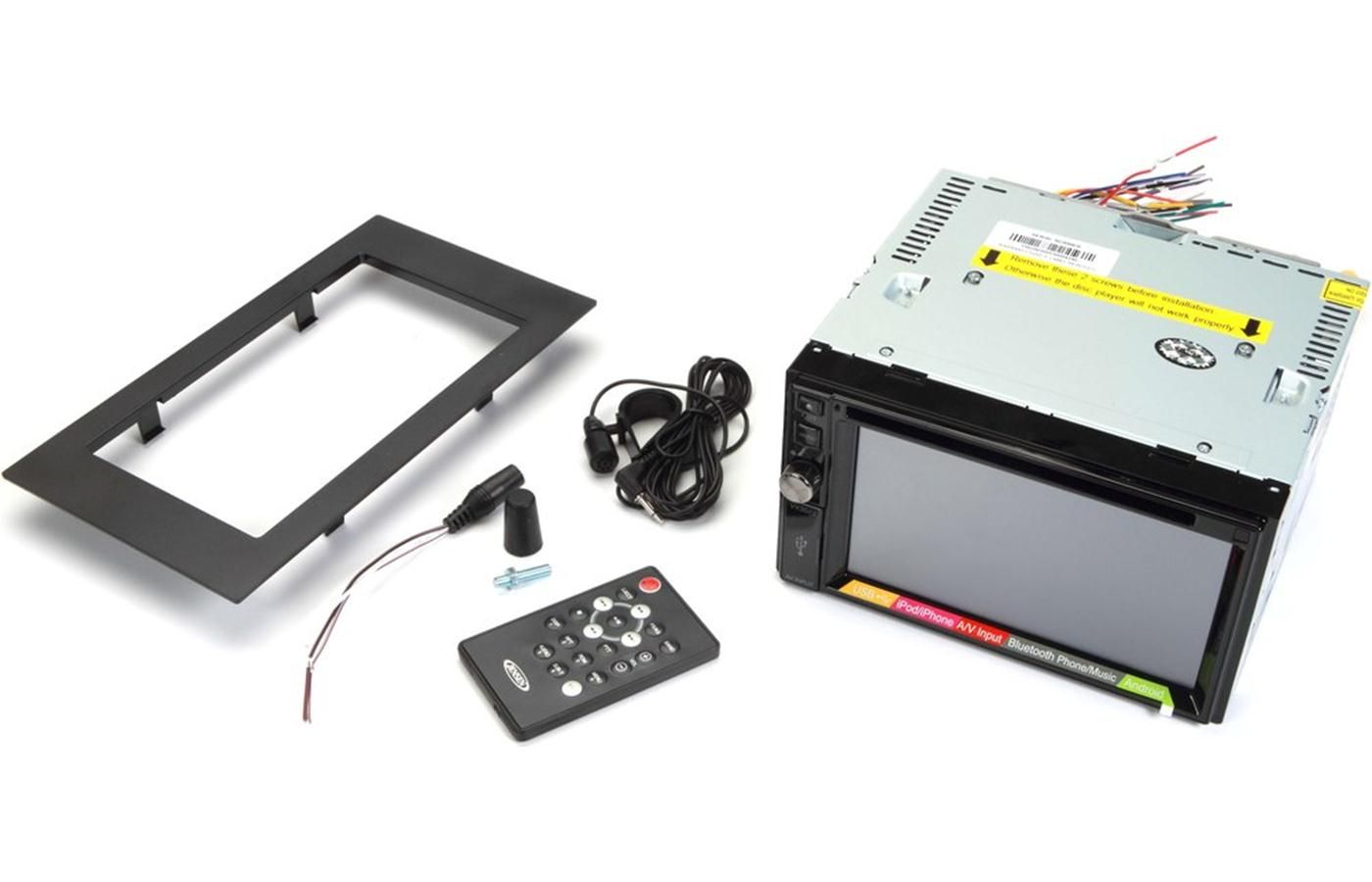
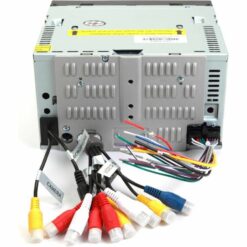
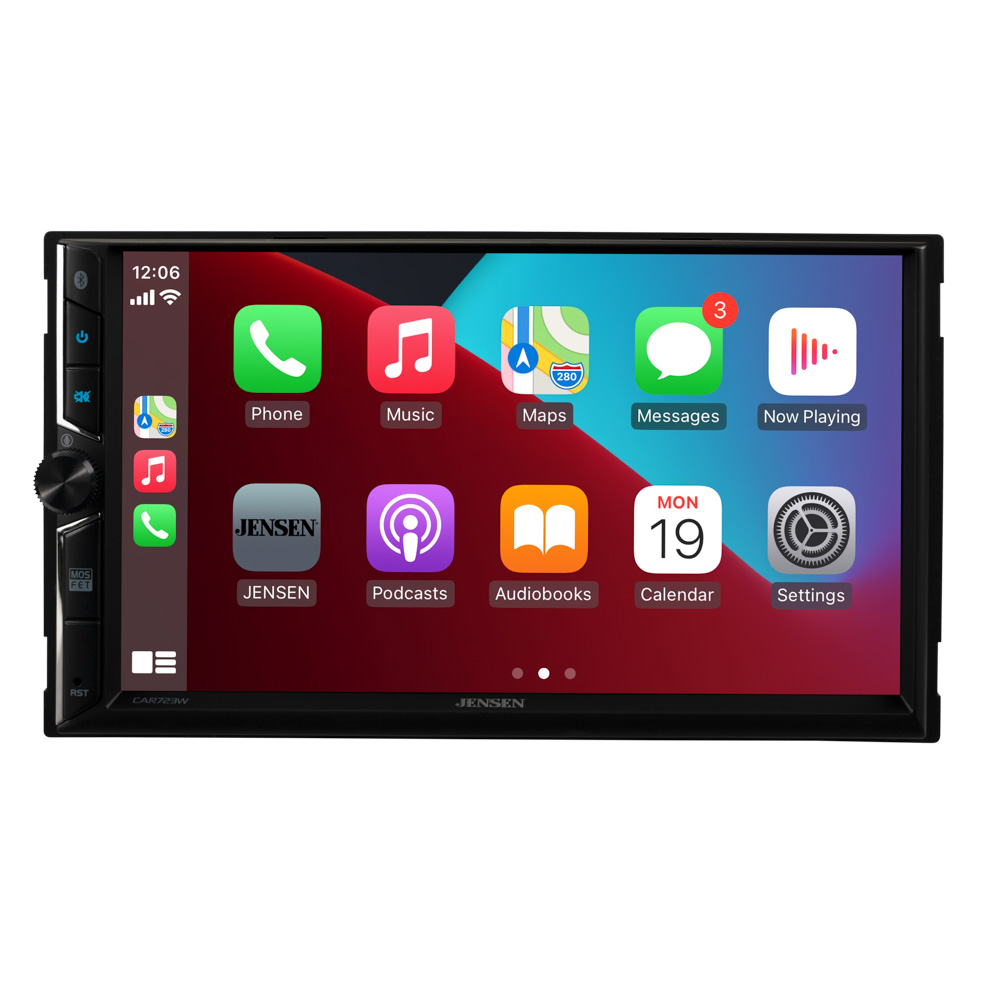
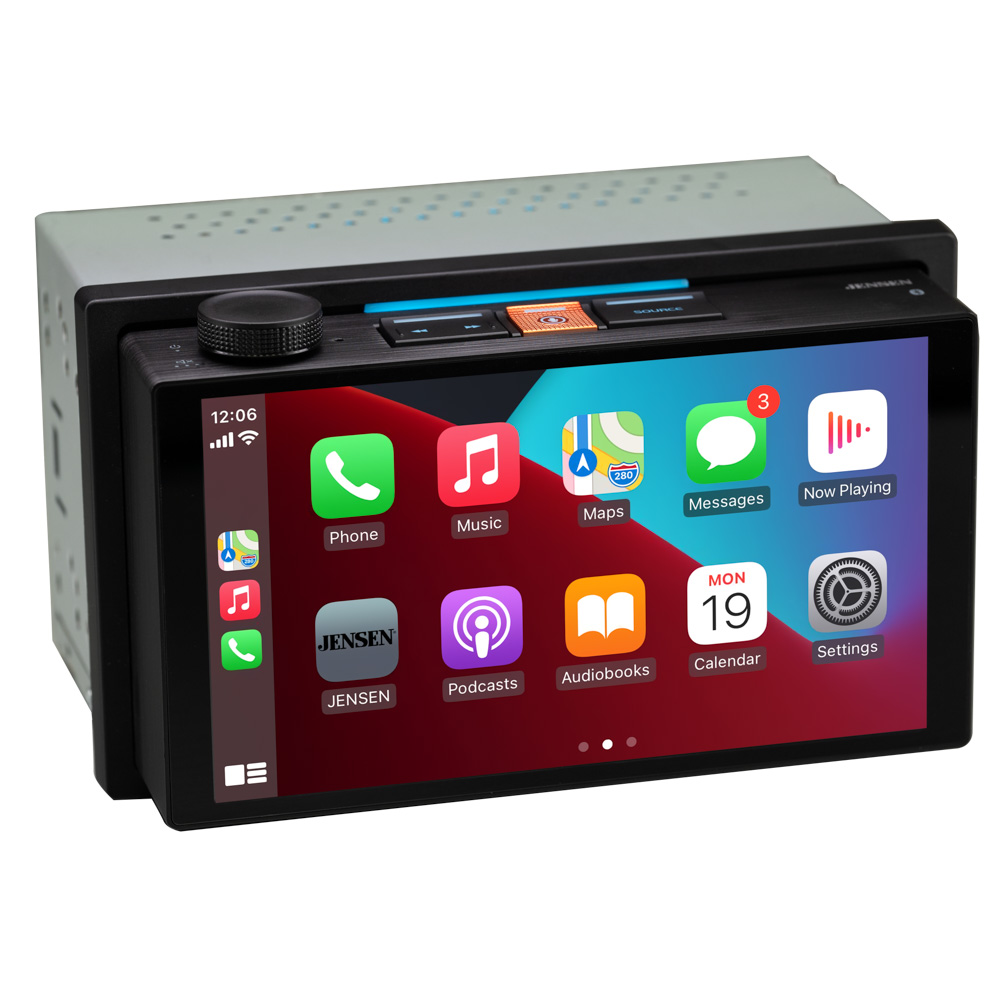
6.2″ CD/DVD Receiver with Built-In Bluetooth – VX3022

6.2″ Touch Screen
CD/DVD Player
Built-in Bluetooth®
Pandora App Control
USB And AV Inputs

SKU: VX3022 Category:
handsfree calling
bt audiostreaming
pandora
bt audiostreaming
made for iphone image
bt audiostreaming
siriusxm
bt audiostreaming
cd dvd icon
bt audiostreaming
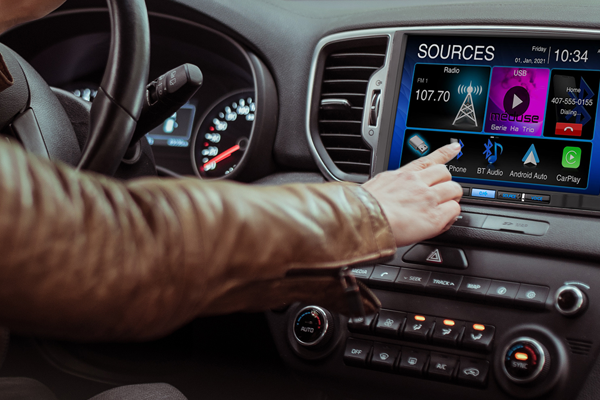
car dash with driver pushing buttons on radio
bt audiostreaming
backup
bt audiostreaming

Manuals & More

VX3022

Firmware Update Information

A Note about Firmware Update via USB Devices

We recommend following the guidelines below for your USB drive:

  • Use an 8GB or 16GB USB drive from a common USB drive manufacturer.
  • Some recommended brands include:
    • SanDisk®
    • Kingston®
    • PNY®
    • Verbatim®
    • Corsair®
  • The drive should support USB 2.0 or faster transfer speeds. Older version USB 1.0 drives are not compatible.
  • Format the drive using FAT32 as the file system on your laptop or computer before copying the software update to the USB drive.

VX3022 Update Instructions
Download the file: VX3022.1001.zip

Note: Software is not interchangeable between models. This update is for the head unit OS only.

  • Items addressed with this update 3022.1001:
    SWC updated to pre-defined PAC protocol. SWC learning capability disabled. A third-party SWC adapter must be used to interface the VX3022 to OE SWC functions such as the PAC SWI-RC (Recommended).
  • Default Turn-On Volume is set to level 7 (Previously set to higher level and was too loud).

Updating via USB Stick
Unzip/Uncompress the software update folder. Place the eight update files into the ROOT directory of the USB stick. See below image for reference.

Note: When updating the unit, make certain that power is not interrupted while the update is in progress. If power is lost or interrupted the unit may become inoperable. Also, before starting the update, turn-off Demo Mode in the Main Settings Menu.

Note: This VX3022 update contains MPEG, MCU and TFT software.

Power up the unit and insert the USB drive into the front USB port.

  1. After a few moments a menu will pop up and look like the following example: UPGRADE SYSTEM [MPEG TFT MCU]
  2. Press TFT Upgrade and another page will be displayed. Press “Upgrade” and the TFT update will begin. “TFT Erasing” will be shown on the display and you will see a progress bar indicating the process percentage.
  3. After the erase procedure, “TFT Upgrading” will be shown on the display and you will see a progress bar indicating the process percentage.
  4. After the TFT update, the unit will reboot and go to the Radio source (All settings will have been reset to factory default).
  5. Go to the Main Source Menu and select USB. A menu will pop up and display the Upgrade System Menu.
  6. Press MPEG and the update will begin. Upgrading MPEG will be shown on the display. If you do not press MPEG to begin the update, the update will automatically begin in 30 ~ 60 seconds. When the update is in process, do not remove the USB drive or attempt to turn OFF the unit. If the update begins automatically, let the update complete. Do not interrupt the update process.
  7. After the MPEG update, the unit will return to the Upgrade System Menu.
  8. Press MCU Upgrade and another page will be displayed. Press “Upgrade” and the MCU update will begin. Upgrading MCU will be shown on the display and you will see a progress bar showing the process percentage.
  9. After the MCU update, the unit will reboot and go to the Radio source (All settings will have been reset to factory default).
  10. Remove the USB drive.
  11. Go to the Settings Menu > DVD Tab > Version Info > Enter >
  12. Verify below software version:
    Software Version Verification
    MPEG Version: v0.78
    MPEG Date: 150227
    MCU Version: v0.80
    MCU Date: 20150703
    TFT Version: v000.018

Click Here to Read Warning for California Residents

Secret Link